Salla apps: what your store needs at each stage, and how to choose before you install
Before you install anything from the Salla app store: what the Salla dashboard already includes, which app categories your store needs at each stage, and how to evaluate an app before you pay and remove it if it doesn't fit.
Wasef Team
Which Salla apps does your store actually need? Most of the basics are already in the Salla dashboard without installing anything: payment methods, shipping labels, abandoned cart reminders, reviews and SEO fields. You need Salla apps when you want something the built-in tools don't cover, such as connecting your ad accounts, adding another messaging channel or getting help writing content. So start with what you already have, and install an app once you know exactly what's missing.
The first time you open the Salla app store, you'll find plenty of categories and even more apps, and all of them say they'll grow your sales. For many merchants, the result is apps nobody uses, subscriptions that renew every month, and sometimes two tools doing the same job.
This guide walks through what Salla already includes, which app categories are worth opening at each stage of your store, how to evaluate an app before you pay, and how to remove it if it doesn't work out. Every step here comes from the Salla Help Center or from the app store pages themselves.
What is the Salla app store?
According to the Salla Help Center FAQ, the Salla app store offers apps built by Salla itself or by developers in the Salla developer community, and Salla reviews and approves apps before they are listed. There are free and paid apps, and you pay from your store dashboard.
Apps are grouped into categories, including:
- Selling and marketing: cross/up-sell, marketing, abandoned carts, SMS, email, chat.
- Tracking and analytics: ad tracking, analytics.
- Operations: shipping and delivery, fulfillment, dropshipping, accounting and finance, ERP systems.
- Content and site: site optimization, AI-driven solutions, app maker.
There are also ready-made kits that bundle several apps, such as the Starter package, which Salla describes as "essential apps for every store, selected by the Salla Success Merchants team." A kit saves you searching, but each app in it is still a separate app, so check what's inside before you install all of them at once.
Before you install anything: what does Salla already include?
This is the most important question in the whole guide. A lot of what merchants look for in an app is already in the dashboard:
Payments
From the payment methods page you can turn on Salla Payments, buy now, pay later options such as Tabby and Tamara, digital wallets and bank transfer. One thing to note: Salla says the Basic plan includes bank transfer and cash on delivery, while electronic payments are available on paid plans only.
Shipping
Salla shipping labels let you issue a label from the order page at special rates with shipping companies inside Saudi Arabia, as long as you activate a carrier that works with labels and have wallet balance or an electronic payment method. You need the Shipping and Delivery category in the app store when you want something this service doesn't cover.
Abandoned carts
Under Marketing, then Abandoned Carts, you can see carts that weren't completed and send an instant reminder or a temporary discount to one customer or a group. According to Salla's abandoned cart FAQ, you can set up to 5 reminders, sent by SMS, email, mobile notifications for App Maker subscribers, or WhatsApp for Salla WhatsApp subscribers.
Reviews and questions
The questions and reviews settings page controls where reviews appear, review request messages after an order, automatic publishing or manual approval, and customer questions on product pages. Some options, such as reviewing from the product page without an order, are available on paid plans only.
SEO
Under Marketing, then Search Engine Optimization, you write the homepage title and description, and there's automatic filling of SEO fields for products, categories and brands. But Salla itself notes that this feature does not replace regular SEO work. In other words, every product needs its own title and description, and we cover what to write in each field in our guide to Salla product SEO fields.
Which apps do you need at each stage?
There's no single list that fits every store. But if you split your needs by stage, choosing gets easier:
1. Launch: measure before you spend
Before your first ad, you need to know where visitors come from and what they do in your store. The Google Analytics app is built by Salla and free according to its listing, which says it analyzes visitor traffic: how many visitors you get, where they came from and which pages they viewed. At this stage, finish the built-in setup too: payment methods, shipping and your return and exchange policy. Don't install upsell apps before you have visitors.
2. Advertising: connect the platforms you actually use
If you're going to advertise, the ad platform needs to know what happened after the click. The Ads Track category has pixel and catalog apps, including free apps built by Salla according to their listings, such as Facebook Pixel and Google Merchant Center, which shows your products across Google's tools. We cover connecting Merchant Center step by step in our Google Merchant Center guide for Salla stores, and Snapchat ads in our Snapchat ads guide for online stores. Install the app for the platform you'll actually advertise on, not every platform.
3. Winning customers back: built-in first
This is where duplication happens most. Abandoned cart reminders and SMS campaigns are already in Salla. According to the Help Center, SMS campaigns require activating an SMS provider from the service connections page, and Salla notes that registering an SMS sender name is mandatory under a decision by Saudi Arabia's communications regulator. Open the Abandoned Cart, SMS and Chat categories when you need a channel or automation the built-in tools don't cover, and make sure you don't run two reminders for the same cart from two places.
4. Content and SEO: product pages people understand
As your catalog grows, writing a description and SEO title for every product becomes real work. You can write them yourself using ready-made product description templates, or look at the Site Optimization and AI-Driven Solutions categories. And if you want content that brings search visits beyond product pages, the E-store blog app is built by Salla and free according to its listing, for writing articles about your products and business.
5. Growth: when the workload grows
The Cross/up sell, Fulfillment, Accounting & Finance and ERP categories make sense once you have enough orders to justify a tool, or a team that needs a system. Before that, you'll often pay for something you don't use.
How do you evaluate a Salla app before installing it?
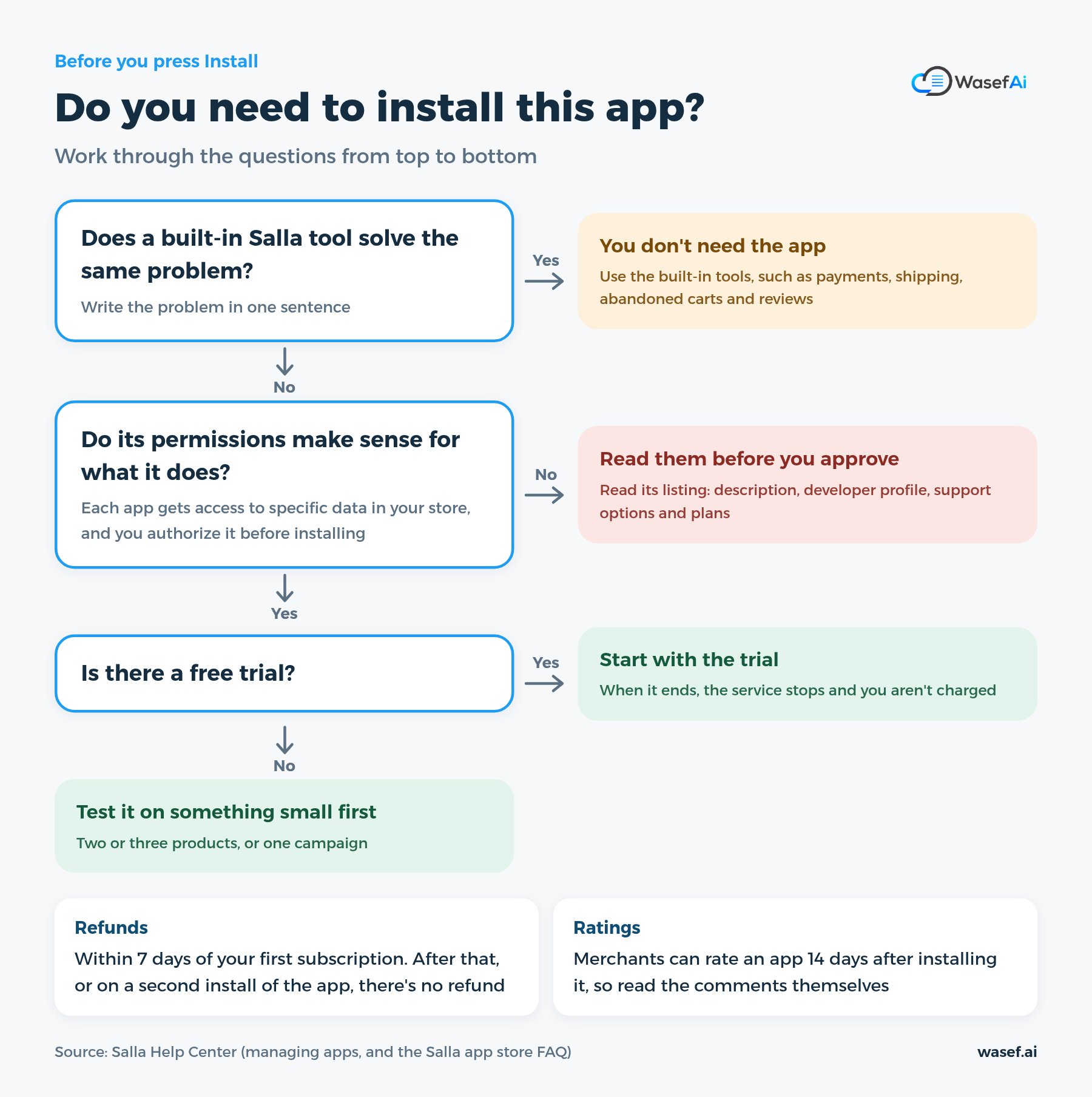
Before you press Install, go through these questions:
- What problem will it solve? Write it in one sentence. If a built-in tool solves it, you don't need the app.
- What does its listing say? Read the description, category, developer profile and support options, and check the available plans.
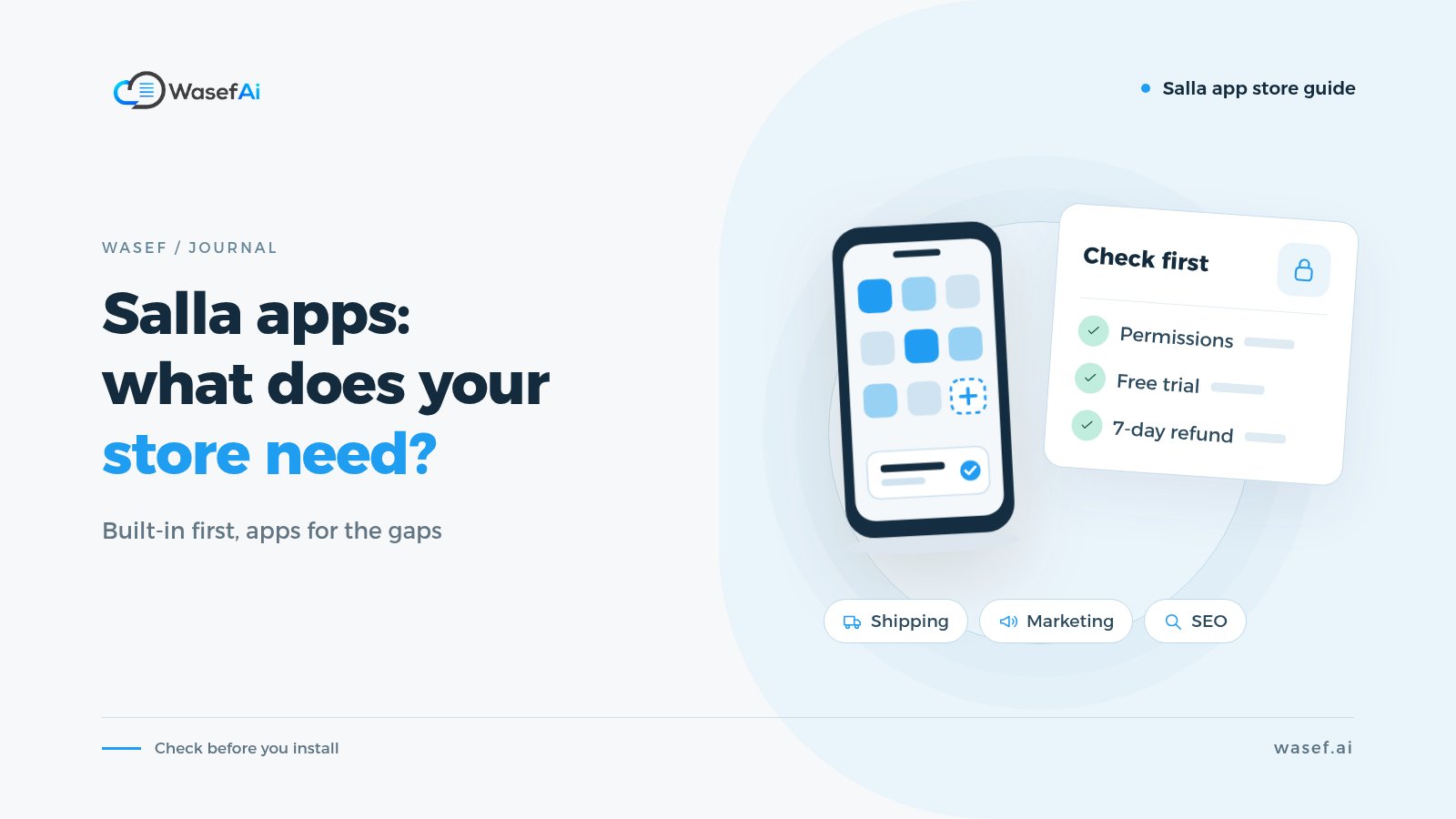
- What permissions does it ask for? Salla explains that each app has permissions that give it access to specific data in your store, and you'll be asked to authorize them before installing. Ask yourself: do these permissions make sense for what the app does?
- Is there a free trial? According to the Salla Help Center, when a trial ends the service stops and you aren't charged.
- What's the refund policy? You can cancel the subscription and get a refund within 7 days of your first subscription. After 7 days, or if this is your second install of the app, there's no refund.
- How is it billed? Some apps are monthly or yearly subscriptions, and some support pay-as-you-go billing from your wallet balance; the feature stops if the balance runs out.
- Test it on something small. Two or three products, or one campaign, before you rely on it across the whole store.
One more thing to know while reading reviews: according to the app management guide, merchants can rate an app 14 days after installing it. So ratings come from merchants who used it for a while, but read the comments themselves and see whether their issues match your needs.
How do you remove an app or stop it renewing?
You'll find all installed apps on the My Apps page (from the main menu, then All, then the helper tools section). From there you can:
- Cancel the subscription: under App Actions, choose Cancel Subscription, and the app moves to the inactive list.
- Stop auto-renewal: under Wallet and Billing, in the subscriptions section, press (...) next to the subscription and choose Stop Auto-Renewal.
- Delete the app: on the My Apps page, from the options menu, press Delete App.
Before you delete any app, check what it changed in your store while it was running, and make sure you don't rely on it for something daily, like order messages or tracking.
What mistakes come up again and again with Salla apps?
- Installing an app before trying the built-in tool in Salla.
- Two apps for the same job, such as two abandoned cart reminders, so the customer gets the same message twice.
- Approving permissions without reading them.
- Forgetting auto-renewal on an app you no longer use.
- Relying on automatic SEO field filling as if it replaces a title and description for each product.
- Judging an app on day one, or leaving it for months without measuring what it added.
If you haven't picked a Salla plan yet, read Salla plans 2026 compared before you install apps. And if you're thinking of writing product descriptions with AI, we compared ChatGPT with an app inside Salla.
Where does Wasef fit in?
Wasef covers one slot only: product descriptions and SEO. It doesn't handle payments, shipping or cart reminders. Wasef is an app in the Salla app store, listed under Site Optimization, that drafts a description for your product from its data, in Arabic and English, with an SEO title and meta description. You review and edit the draft before publishing. It has a 7-day free trial with no card required.
If you want to try it, see how to install Wasef on your Salla store. Before that, you can see where your product pages stand with the free product page SEO check, then decide whether you need an app at all.
Sources
- Salla: Managing apps in the Salla app store (Arabic)
- Salla: Salla app store FAQ (Arabic)
- Salla: Pay-as-you-go billing for apps (Arabic)
- Salla: Activating payment methods in your store (Arabic)
- Salla: Shipping labels step by step (Arabic)
- Salla: Managing the abandoned carts page (Arabic)
- Salla: Abandoned carts FAQ (Arabic)
- Salla: Activating temporary discounts on abandoned carts (Arabic)
- Salla: Marketing campaigns via the app and SMS (Arabic)
- Salla: Questions and reviews settings (Arabic)
- Salla: Improving your store's search engine visibility (Arabic)
- Salla app store: Categories
- Salla app store: Starter package
Tags
Before your next campaign, review your product pages with this checklist
Five steps on one page: what to check in your descriptions, how to fill in the SEO fields, and when to add a promotional title. Print it and work through it product by product.
Product page prep checklist
Ready before your next campaign
- Pick the products that will carry the season
- Review every page on mobile
- Fill in the SEO fields in product settings
- Promotional title: honest and temporary
- Spread the work over six weeks