Snapchat Ads for Online Stores: Setup, Cost, Targeting and the Snap Pixel
How to prepare your product page before advertising, connect your Salla store to the Snap Pixel, launch your first campaign in Snapchat Ads Manager, set a budget, and tell whether your ads actually sell.
Wasef Team
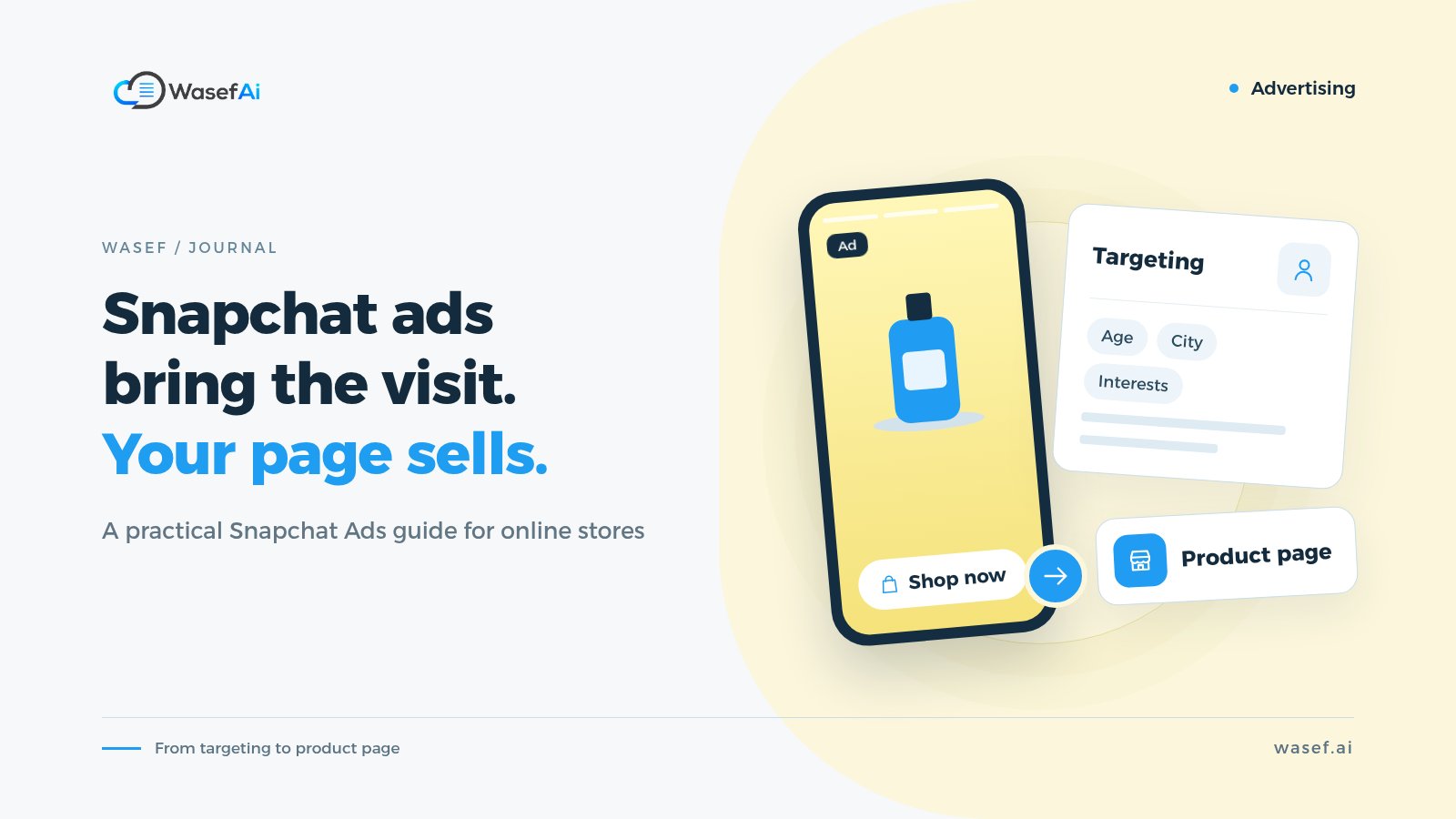
Are Snapchat ads worth it for an online store? Snapchat ads are full-screen vertical ads that appear between Stories and other content in the app, and they can send shoppers to your product page with one tap. You run them from Snapchat Ads Manager. Snap says you can spend as little as $5 a day, but it recommends at least $20–50 a day so your ad can finish its learning period. If your store runs on Salla, you can connect your Snapchat account from your dashboard to track sales.
One thing up front: a Snapchat ad's job is to bring the visit. Your product page is what makes the sale. Many merchants spend on ads, see plenty of clicks but few orders, and decide "Snapchat doesn't work." More often, the problem is the page the shopper landed on, not the ad.
This guide covers how to prepare your store before you spend anything, how to set up your first campaign step by step, how much Snapchat ads cost, and how to tell whether an ad is actually selling.
Before you spend: get three things ready
1. A product page that answers questions before shoppers ask
A shopper who taps your Snapchat ad just watched a few seconds of video. They won't dig around. The moment the page opens, they need to see what the product is, what it costs, what makes it different and when it will arrive. If the description is copied from your supplier or full of vague lines like "high quality", they'll swipe back to Snapchat.
Review the descriptions of the products you plan to advertise first. Our product description templates for every category give you a starting point.
2. Vertical photos and video of the product
Snapchat is fully vertical, and the standard ad size is 1080×1920 pixels (9:16). You don't need a studio shoot. A phone video showing the product in use often fits the platform better than a design packed with text. Our phone product photography guide covers lighting and angles.
3. Your store connected to Snapchat with the Snap Pixel
Without tracking, you're advertising blind. Salla offers the Snap Business Extension, which connects your Snapchat account to your store, creates or links the Snap Pixel and your product catalog, and turns on the Conversions API automatically. According to Salla's guide, the steps are:
- In your Salla dashboard menu, go to Marketing, then Tracking tools.
- On the Snapchat tab, click Connect your account.
- Connect your Snapchat ad account or create a new one.
- Choose the ad account, then the pixel (or create a new pixel), and click Continue.
- Approve the permissions, and the connection is complete.
Once connected, Snapchat receives your store events, such as product views, add to cart and purchases. Salla says the feature is available on its Plus, Pro and Special plans.
How to advertise on Snapchat: your first campaign step by step
Step 1: Create a Snapchat Ads Manager account
Go to ads.snapchat.com, sign in with your Snapchat account, create a business account under your store's name, and add a payment method. If you connected your store from Salla in the previous step, your ad account is probably ready.
Step 2: Choose a campaign objective
Ads Manager offers main objectives such as Awareness & Engagement, Traffic, Leads, App Promotion and Sales. For an online store, the choice is usually between two:
- Sales: if your pixel is working and recording purchases. Snapchat then tries to reach people who are more likely to buy.
- Traffic: if you want to test a product and ad quickly. Just remember that lots of visits doesn't mean lots of sales.
Step 3: Set your Snapchat ads targeting
Start simple and don't narrow it too much:
- Location: the cities or regions you actually ship to.
- Age and gender: based on your existing customers, not guesses.
- Interests: pick interests close to your product, such as fragrance, fashion or coffee.
- Audiences from your store: once the pixel has collected data, you can retarget people who viewed a product or added to cart without buying. This is often one of your best audiences.
Step 4: Set your budget (how much do Snapchat ads cost?)
Snap's pricing page says you can spend as little as $5 a day, but it recommends at least $20–50 a day to help your ad complete the "Exploration Phase". That's the period when Snap's system learns who in your audience is most likely to act on your ad, and it typically lasts four days or more, depending on your objective.
So don't judge a campaign on day one. If your budget is limited, focus on one or two products with enough budget each, rather than spreading a small amount across ten products.
Step 5: Create the ad
- The first two seconds matter most: show the product, or the problem it solves, right away.
- Short, clear copy: one line that states the benefit. For ideas, see our marketing phrases for online stores.
- A clear button: such as "Shop now".
- Link to the product page itself: not your homepage. The shopper tapped for a specific product, so take them straight to it.
- Matching details in the ad and on the page: if the ad says "20% off", the shopper must find the same discount on the page.
Which Snapchat ad formats suit online stores?
- Single image or video ads: the simplest start. One product, one message, one product page link.
- Collection ads: a main video or image with thumbnails of several products to choose from. Good for stores with a range, such as several colors of the same abaya.
- Dynamic product ads: built from your product catalog, showing shoppers products they viewed or similar ones. This is why connecting your catalog from Salla matters.
How do you know if your ad is actually selling?
Don't stop at views or clicks. These are the numbers that matter:
- Cost per purchase: how much you spent to get one purchase. Compare it with your profit on the product, not its price.
- Return on ad spend (ROAS): campaign sales divided by spend.
- Add to cart vs. purchase: if many people add to cart but don't finish, the problem is usually shipping, payment or trust, not the ad.
- Bounce from the product page: if visits are high and add-to-carts are close to zero, review the page itself: photos, description and price.
Common Snapchat ads mistakes for online stores
- Sending ad traffic to the homepage instead of the product page.
- Judging a campaign after one day, before the Exploration Phase is over.
- Narrowing the audience so much at the start that the ad can't reach enough people.
- Using horizontal or text-heavy designs instead of vertical video that shows the product.
- Advertising a product with low stock or an incomplete product page.
- Running ads without the Snap Pixel, so you can't tell what sold.
Got a busy season coming up?
Before seasons like White Friday, more brands advertise and competition for the same audience rises. Start testing early and have your strongest campaigns ready before the season. Our White Friday offer ideas can help you discount without burning your margin, and make sure your return and exchange policy is clear, because it's one of the first things a new customer looks for.
The same product pages you prepare for ads can also show up for free in Google's shopping results. Our Google Merchant Center guide for Salla stores shows how.
A simple plan for your first week
- Connect your store to Snapchat from Salla and confirm the pixel is recording events.
- Pick one or two products that are in demand and in stock.
- Review each product page: clear photos, a description that answers questions, and clear price and shipping.
- Shoot two short vertical videos per product from different angles.
- Run a Sales campaign with enough budget for the Exploration Phase, and leave it for at least four days.
- Compare cost per purchase with your profit, then scale the ads that sell and pause the ones that don't.
If your product descriptions need work before you advertise, Wasef is a Salla app that drafts product descriptions from your product data, in Arabic and English, along with an SEO title and meta description. You review and edit the draft before publishing. There's a 7-day free trial with no card required.
Sources
Tags
Before your next campaign, review your product pages with this checklist
Five steps on one page: what to check in your descriptions, how to fill in the SEO fields, and when to add a promotional title. Print it and work through it product by product.
Product page prep checklist
Ready before your next campaign
- Pick the products that will carry the season
- Review every page on mobile
- Fill in the SEO fields in product settings
- Promotional title: honest and temporary
- Spread the work over six weeks