Google Merchant Center for Salla Stores: Setup, Free Listings and Product Data
What Google Merchant Center is, how to connect your Salla store step by step, and how to prepare product titles and descriptions so your products get approved and show in Google's free listings.
Wasef Team
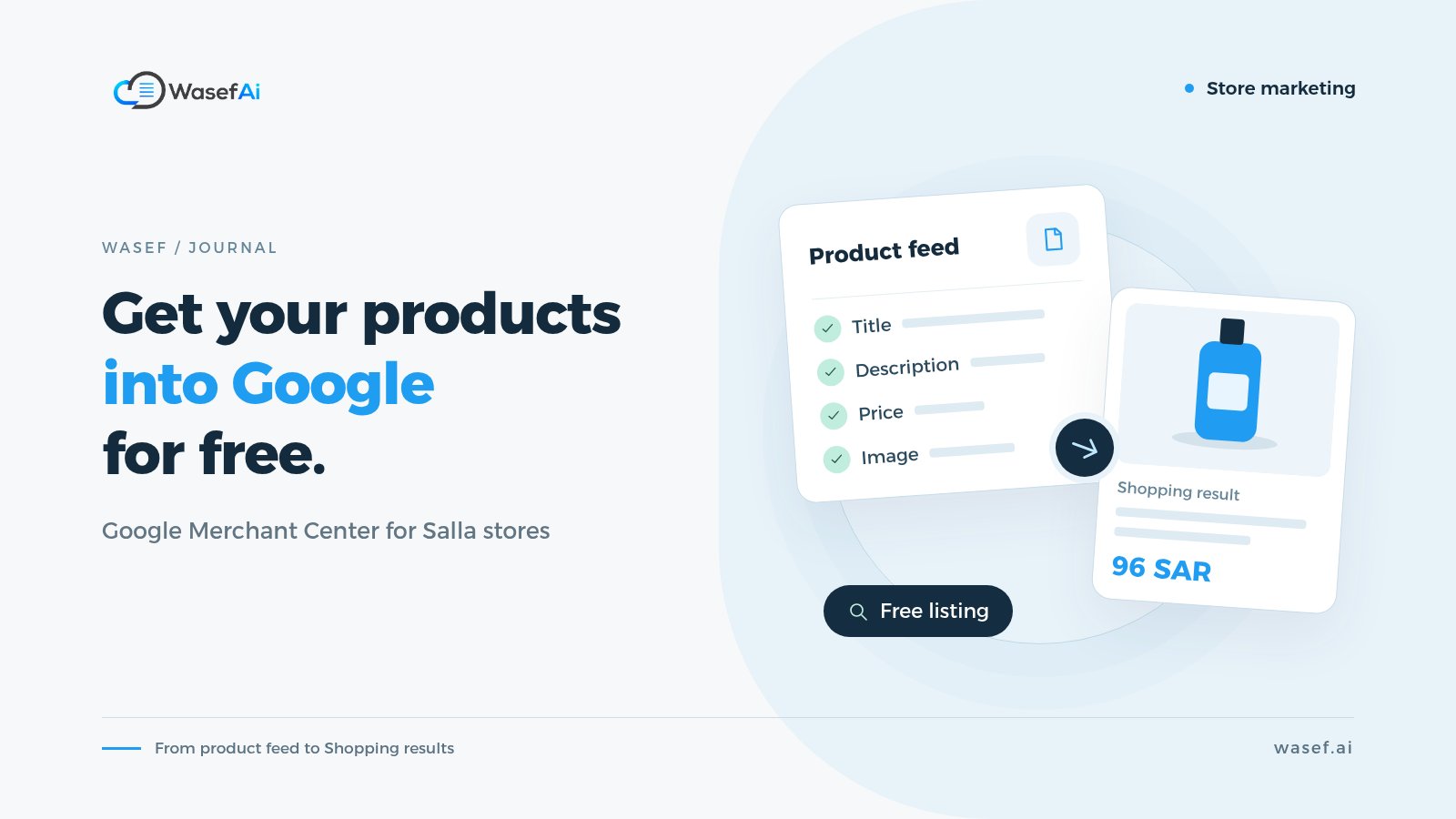
What is Google Merchant Center? Google Merchant Center is a free Google account where you submit your product data: names, descriptions, prices, images and availability. Once your products are approved, they can appear in Google's shopping results for free, and the same data can later power paid Shopping ads. If you sell on Salla, you connect your store through the Google Merchant Center app in the Salla App Store.
Picture a shopper searching Google for "Cambodian oud 3 tola" or "black crepe abaya". Before the regular results, they often see product cards with photos, prices and store names. Those cards don't come from your product page directly. They come from the product data Google received through Merchant Center. If your store isn't connected, your products usually aren't in that space at all.
This guide walks you through it step by step: what you actually get, what Salla requires before you connect, how to set up Google Merchant Center, and the part most merchants skip: how to prepare product titles and descriptions so they get approved and look convincing.
Free listings vs. Shopping ads: what's the difference?
Merchant Center itself isn't an ad. It's where your product data lives. That data feeds two kinds of visibility:
- Free listings: your products can appear in the Shopping tab, in Search results and in Images without paying per click. Google's Merchant Center Help lists the countries where free listings are available, and Saudi Arabia is one of them.
- Shopping ads: paid ads you manage in Google Ads, built on the same product data from Merchant Center.
To be clear: connecting doesn't guarantee top placement. Salla's own Merchant Center FAQ says the connection is the first step, and that Google weighs other factors such as your store and product ratings and how much demand there is. Without the connection, though, you have no chance at all.
What do you need before connecting Salla to Google Merchant Center?
According to Salla's Merchant Center guide, there are two requirements:
- Your own domain: a link like yourstore.com instead of Salla's default store link.
- Google site verification: proof to Google that you own the site, which you complete from your Salla settings before connecting.
Have these ready too, because Google asks for them during signup:
- Your business address (street, city and postal code).
- A phone number that can receive a verification code.
- Shipping costs and delivery times for the cities or countries you ship to.
- A clear return and exchange policy published on your store. If you don't have one yet, start from our return and exchange policy template.
One more thing: Salla's FAQ says the product feed feature is part of the Salla Pro plan. Plans change, so check your current plan in your dashboard.
How to set up Google Merchant Center for a Salla store
Setup happens in two stages: you copy your product feed link from Salla, then you give it to Merchant Center.
Stage 1: Copy your product feed link from Salla
- In your Salla dashboard sidebar, open Installed Apps.
- Click Browse Salla App Store, find the Google Merchant Center app, and click Install.
- Back on your apps page, open App options and choose App settings.
- Click Copy link. This is your product feed URL, and you'll paste it in stage 2.
Stage 2: Create your Merchant Center account and add products
- Go to Google Merchant Center, sign in with your store's Google account, and click Get started.
- Answer the questions about your business: do you sell online, and do you have a physical store?
- Enter your business name and country. Salla notes the name should be short and clear, without promotional text, phone numbers or symbols.
- Add your business address and verify your phone number with the code Google sends.
- Click Confirm to claim your online store and enter your store URL. The site verification you completed in Salla needs to be in place for this step.
- Set up shipping: countries, delivery times and shipping costs.
- To add products, choose Add products from a file, then Enter a link to your file, and paste the link you copied from Salla.
Each product then gets a status: Under review, Not approved or Approved. Reviews usually take a few days. If a product is rejected, open Review and fix issues next to it to see why.
Your Salla product name is your Google Shopping title
This is what separates a store that's merely "connected" from one whose products actually show up. The feed takes product names and descriptions from your store as they are. If your product is named "Amazing deal 🔥 don't miss it" in Salla, that's exactly what Google receives.
Google relies on titles and descriptions to understand your product and match it to what shoppers search for. Its title attribute guidelines are clear:
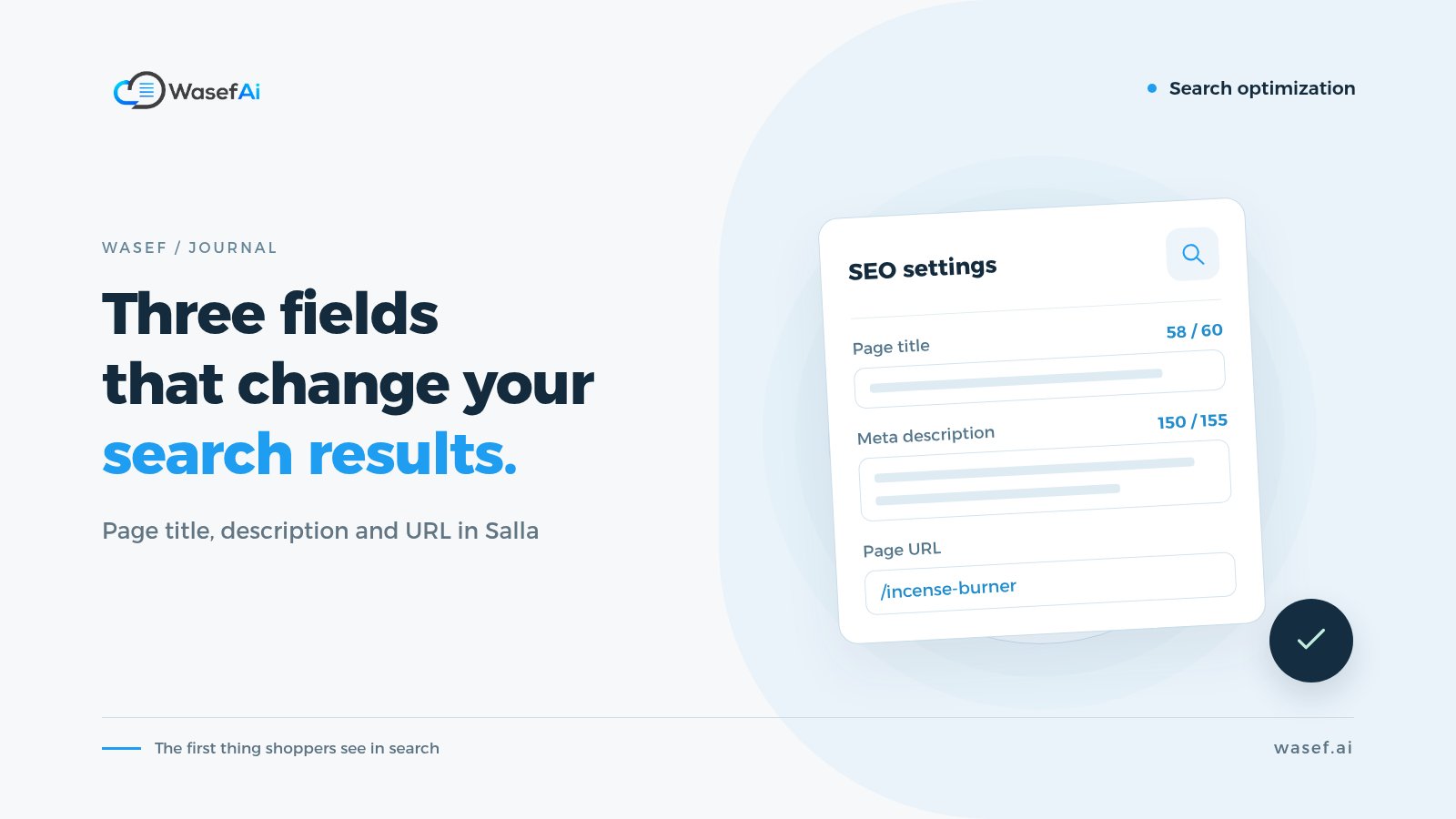
- Titles can be up to 150 characters, but shoppers usually see only the first 70 characters or fewer, depending on screen size. Put the most important details first.
- Describe the product accurately, matching what's on your product page.
- Leave out promotional text: no prices, "sale", "free shipping" or your store name.
- Don't use capital letters for emphasis, symbols, emoji or extra spaces.
- If you sell the same product in several sizes or colors, make each variant distinct.
What's the best structure for a product title?
There's no single formula for every category, but this order works for most stores: product type + brand (if it matters) + key feature + size, color or quantity. Compare:
- Before: "Amazing perfume 🔥 special offer" → After: "Oud Eau de Parfum for Men 100 ml - [Brand Name]"
- Before: "New abaya 2026 model" → After: "Black Crepe Abaya with Wide Sleeves - Size 54"
- Before: "Excellent coffee" → After: "Ethiopian Yirgacheffe Washed Specialty Coffee - 250 g"
Each "after" title answers the shopper's question before they click, and it contains the words they're likely to search for. It's the same logic we cover in our guide to Salla's product SEO fields.
How to write a product description that Merchant Center accepts
Descriptions can run up to 5,000 characters, but Google's description attribute guidelines recommend putting the most important details in the first 160 to 500 characters, because shoppers only see the rest if they click.
Include:
- Real product specs: size, material, volume, ingredients and how to use it.
- Variant details such as color, size or type.
- For bundles or sets, exactly what's included and how many items.
Avoid:
- Prices, discounts, sale dates and shipping details. Those have their own attributes.
- Links to your store or other websites.
- Comparisons with other products, or details about your company history and policies.
- All caps or symbols used to grab attention.
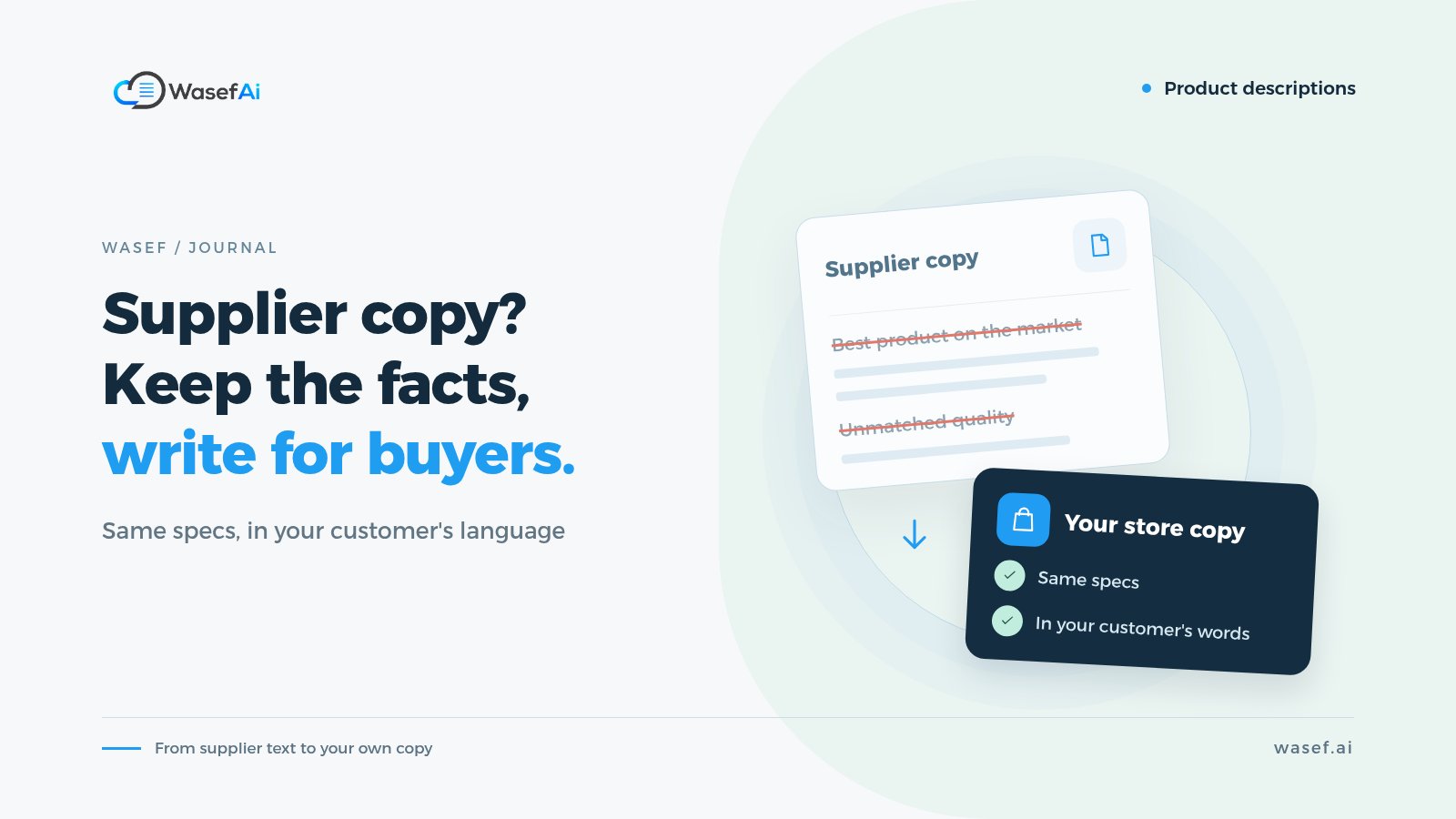
Many of these rules also make the description more convincing on your product page. Lines like "best product on the market" and "unmatched quality" don't help shoppers or Google. If you copied your supplier's text, see how to rewrite supplier product descriptions.
What if you wrote your descriptions with AI?
Worth knowing: Google's product data specification includes two attributes, structured_title and structured_description, and Google asks merchants to use them for titles and descriptions created with generative AI, along with the source type. Salla's feed fills the fields automatically, so if most of your copy comes from AI tools, keep an eye on Google's guidance and any related updates from Salla.
Either way, the rule that matters to Google and to shoppers is the same: check every detail and make sure it's accurate and specific to your product. We cover Google's position in depth in Does Google penalize AI-written content?.
Why were my products disapproved in Google Merchant Center?
Most disapprovals come back to the same few causes, usually product data or store information:
- Price or availability doesn't match your page: Google compares the feed with what shoppers see. If you change a price in Salla, make sure the feed has refreshed before you judge.
- Unsuitable images: promotional text, large watermarks or logos covering the product, or a photo that doesn't show the product clearly. Our phone product photography guide covers clean, clear product shots.
- Missing store information: no contact details, return policy or shipping details makes Google suspicious of the store. This is one of the most common reasons behind "misrepresentation" issues.
- Promotional text in titles or descriptions: words like "sale" or "best", or symbols.
- Broken product links: a deleted or hidden product that's still in the feed.
When a product is disapproved, don't make random edits. Open Review and fix issues, read the stated reason, fix the product in Salla, and wait for the feed to refresh.
When should you connect?
Well before your busy season. Reviews take days, and fixing rejected products takes longer. If you want your products ready for White Friday or year-end sales, connect now and clean up your product data while you have time. Our White Friday product page checklist has the full list.
Your next steps
If you want to start today, here's a practical order:
- Confirm your custom domain and Google site verification in Salla.
- Review the names of your top 20 products and rewrite them as "type + brand + feature + size".
- Make sure the first two lines of every description cover the core specs.
- Install the Google Merchant Center app in Salla and finish setup.
- Check product statuses after a few days and fix anything rejected.
If you have many products whose descriptions need work, Wasef is a Salla app that drafts product names and descriptions from your product data, in Arabic and English, along with an SEO title and meta description. You review and edit the draft, then publish it to your store. There's a 7-day free trial with no card required, so you can try it on a few products and see if it fits how you work.
Sources
- Salla: Connect your store with Google Merchant Center
- Salla: Google Merchant Center FAQ
- Google Merchant Center Help: Show your products for free on Google
- Google Merchant Center Help: Title attribute
- Google Merchant Center Help: Description attribute
- Google Merchant Center Help: Product data specification
Tags
Before your next campaign, review your product pages with this checklist
Five steps on one page: what to check in your descriptions, how to fill in the SEO fields, and when to add a promotional title. Print it and work through it product by product.
Product page prep checklist
Ready before your next campaign
- Pick the products that will carry the season
- Review every page on mobile
- Fill in the SEO fields in product settings
- Promotional title: honest and temporary
- Spread the work over six weeks