How to write your first product description with Wasef and publish it to Salla
Follow the steps on a demo product: open the product, generate content, review and edit it, then save it in Wasef and publish the saved version to Salla.
Wasef Team
Let's try it on a single product. The walkthroughs below come from a Demo store (shown in Arabic in the recordings) and show generation, review, saving, and the result of the publish request inside Wasef. Move between steps with the buttons; you don't need to wait through the full generation time.
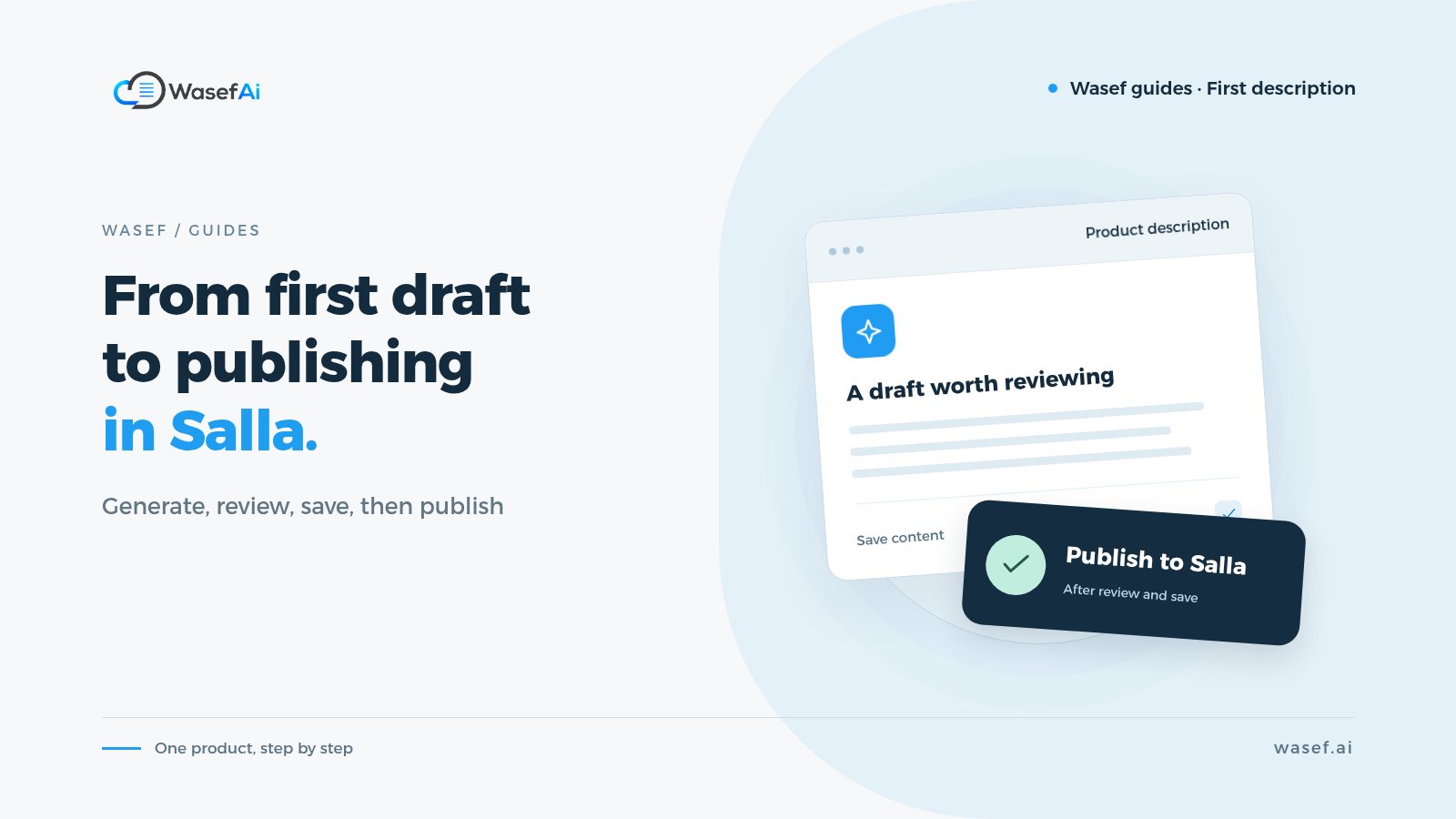
Remember the order: generating prepares the draft, saving locks in your edits in Wasef, and publishing sends the saved version to Salla. Text appearing in the editor on its own doesn't mean it has reached your store.
Before you start
You need a connected store, a product linked to its product in Salla, an active subscription, and available generation credit. If you're part of a team, make sure you have edit and publish permissions. Haven't connected your store yet? Start with the tutorial on installing Wasef on Salla.
1. Open the product and generate the draft
Review the confirmed product details and choose the language. The “Generate” button on the product screen starts right away; it isn't a form for writing instructions. Don't rely on the name or image to prove a material, size, or missing feature.
From the product list to the draft
4 stepsLoading page state.
Step 1 of 4
Open a single product
We picked a “skirt” (“تنورة”) from a demo store. Start with a product whose details you know, and make sure you're in the right store.
2. Review, edit, then save
Compare the draft with the original information. In the example, we tidied up the measurements and edited unconfirmed phrases. Review the name, SEO fields, and promotional fields too; generating and publishing aren't limited to the description. The SEO score is a guide, not a guarantee of search ranking.
Reviewing the content and saving in Wasef
4 stepsLoading page state.
Step 1 of 4
Review the description before accepting it
Compare the draft with the original product details. Here we edit the introduction and tidy up the measurements instead of accepting the text as is.
Make sure saving succeeded before you publish. In the next clip, the “Unpublished changes in Salla” status appeared after saving. If you edit the text again, save the new version first.
3. Publish the saved version and check the result
From saving to the “Published to Salla” status
3 stepsLoading page state.
Step 1 of 3
Saved, but not published
After saving, the “Unpublished changes in Salla” status appeared. This shows that saving and publishing are two separate steps.
Don't repeat the request while “Publishing to Salla” is showing. Once it finishes, open the right product in Salla and make sure the description is the saved version. If it's visible to shoppers, check the paragraph order on mobile. We didn't record the Salla dashboard or the storefront in this tutorial, so don't skip this check.
If a step didn't complete
Generation failed or is taking a while? Read the error message and check your subscription, credit, and permissions before trying again. Don't assume every attempt ends with a new draft, and don't repeat generation just because the result is slow.
Saved, but the product didn't change in Salla? Make sure you requested publishing after saving and that it completed. If publishing failed, check the store connection, the product link, and the error message, then contact support with the store name, the product, and the time of the attempt, without any sign-in details.
Need English? Generating in Arabic doesn't create an English version automatically. Review the saved content in each language, and make sure English is enabled in Salla before publishing English content.
What's next? Pick a second product and repeat the same order: generate, review, save, then publish. If you want a reference to check the draft against while you review, see these product description templates by category and what a description should cover in each one.