Let your team help: members, invitations, and roles in Wasef
Learn how member and invitation counts differ, choose the right role for each invitee, and track invitation status, all without sharing your sign-in details.
Wasef Team
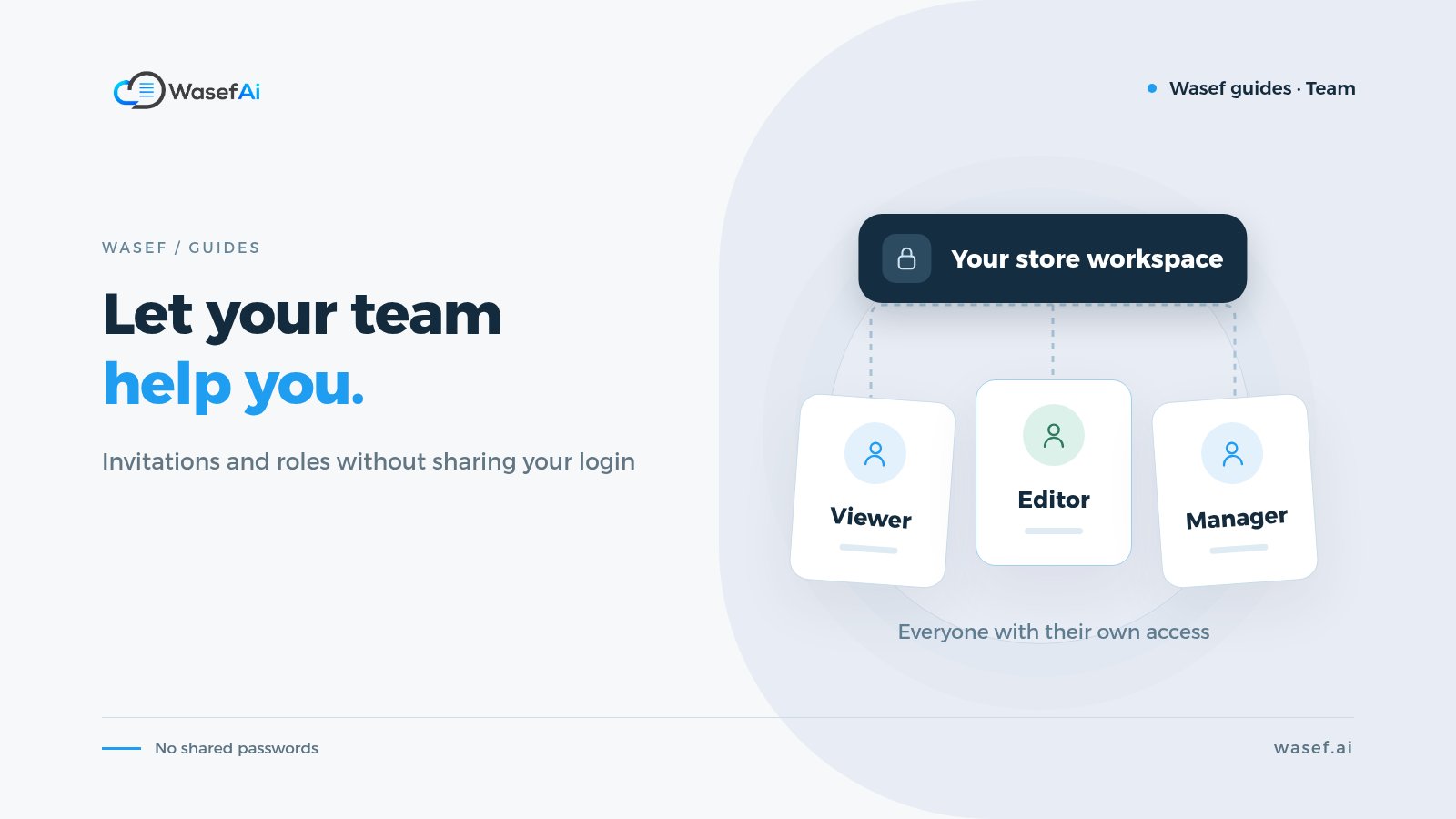
If more than one person helps you manage your store's content, you don't need to share the same login. The Store members page brings invitations, members, and roles together, so you can review who has access and whose invitation is still open or has expired.
What will your store gain?
You keep each person's access separate from your own account and choose the role that fits their job. This helps you organize collaboration and review access instead of relying on one account shared across the team.
Before you start
Sign in with an account that can manage members. The invitation form offers the Admin, Editor, and Viewer roles; choose based on what the person needs, and don't give more access than required. Double-check the email address before sending.
Let's see the feature
This is an interactive walkthrough recorded in a demo store, not a live store you can edit. Use Previous and Next to move between steps. Sign-in and the verification code were not recorded. The Wasef interface is shown in Arabic in the recording.
Let your team help: members, invitations, and roles in Wasef
4 stepsLoading page state.
Step 1 of 4
See members and invitations separately
An expired invitation is not a member who joined the store. The counts here are an example, not your plan's limit.
What did we verify?
The member count and the invitation count are two different things. The recording showed one member and one expired invitation; this is an example from the demo store, not a limit on how many people you can invite or a numeric plan feature. We only selected “Editor” in the form, and we didn't send an invitation, resend an old one, or change anyone's access. Email addresses are masked to protect privacy.
Once your editor joins, agree on a clear review routine: who writes, who reviews and who publishes. Our article on why SEO matters for product descriptions includes a short list of pre-publish questions the whole team can use.